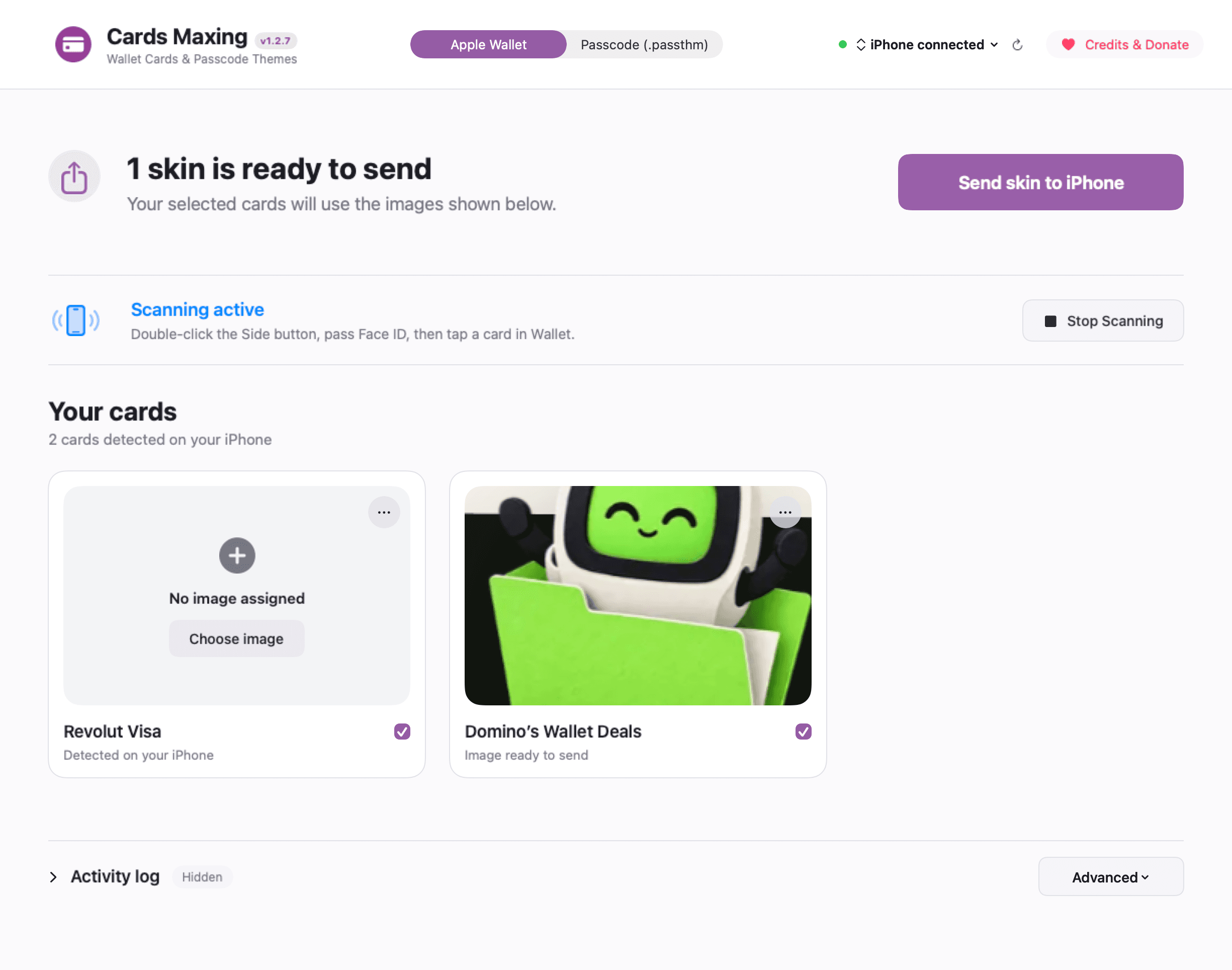
Choose artwork that feels like you.
Use a photo, illustration or abstract design that you have permission to use. Artwork changes the appearance of an existing card, not its payment permissions.
Start with the card on your iPhone.
Connect, unlock and trust the iPhone. Start Scan Cards on the Mac, then open Wallet, authenticate and select the intended card on the phone.
Prepare, send, then verify.
Choose artwork for the detected card and inspect the Mac preview. Use Send skin to iPhone (or Send skins to iPhone for multiple cards) for the selected artwork. A transfer receipt means the artwork was sent; reopen Wallet and inspect the card on the iPhone.
When a card is missing.
Use the current scan, reconnect and missing-card tools. A saved card ID or cache count does not establish that a card is ready to flash on the connected phone.